Security & Wallet Settings
Moi Wallet provides several security and wallet management options in Settings. This page covers revealing your seed phrase, resetting the wallet, locking the session, and recovering from a forgotten password.
Reveal Seed Phrase
You can view your 12-word seed phrase from within the wallet after authenticating with your password. Use this only when you need to migrate your wallet to a new device or verify your backup.
Steps
- Click on App Drawer
- Tap or click Reveal Seed Phrase
- Authenticate with your wallet password
- Your 12-word seed phrase is displayed on screen
Do not share this screen with anyone, take a screenshot, or photograph it. Anyone who sees your seed phrase has full access to all funds in your wallet. Use this feature only when you are in a private location and intend to write the phrase on paper for backup or migration.
Reveal your seed phrase only when physically migrating to a new device or verifying that your written backup is correct. For day-to-day security, your seed phrase should remain off-screen.
Reset Wallet
Resetting the wallet completely wipes all local wallet data from your device or browser extension. This action cannot be undone from within the app.
What reset does
- Removes encrypted seed phrase, accounts, keys, and settings from local storage only
- Does not delete your wallet or funds on the blockchain — they remain accessible if you have your seed phrase
- Requires you to create or import a wallet again to use Moi Wallet on that device
Steps
- Go to App Drawer → Reset Wallet
- Confirm your intent by clicking
RESET - Local wallet data is erased — you return to the welcome screen
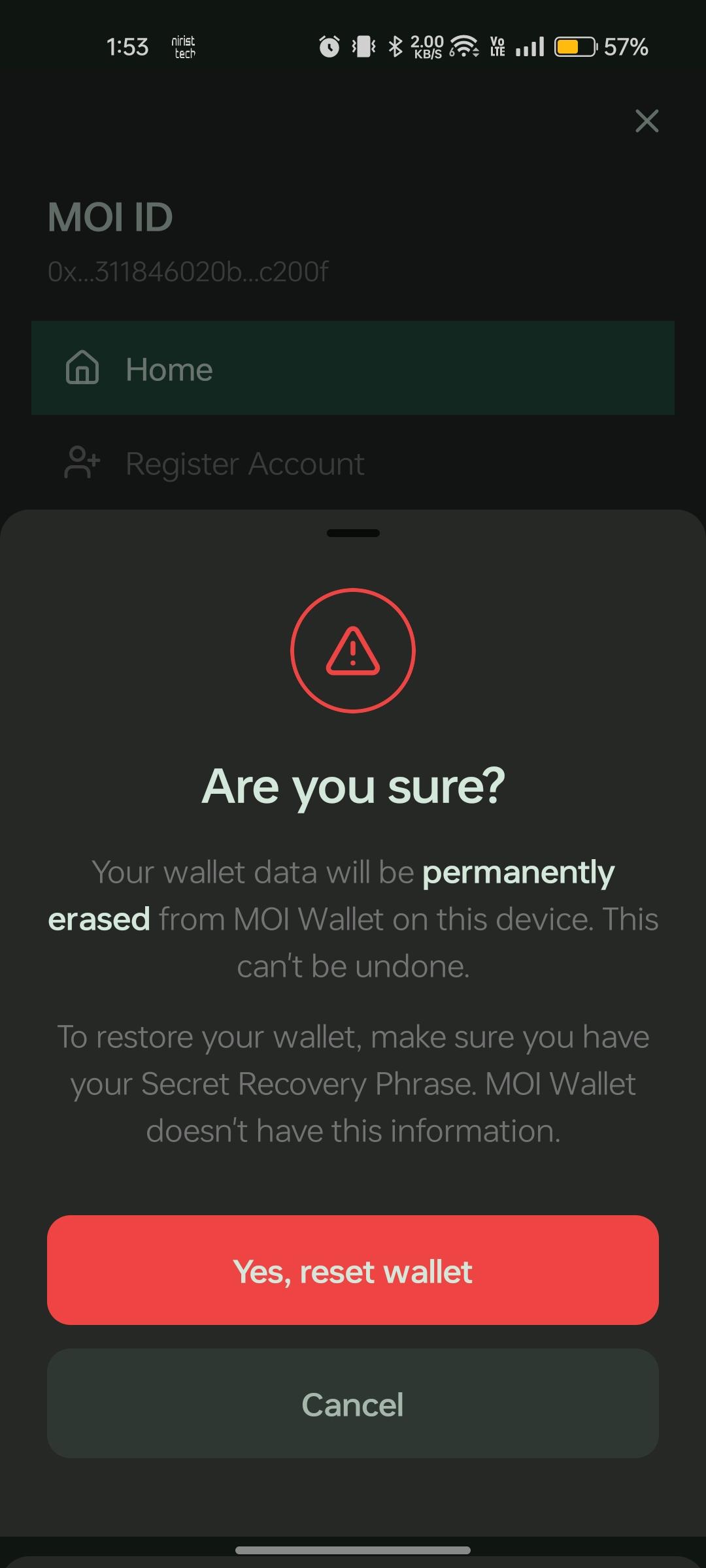
Make sure you have your 12-word seed phrase written down and stored securely before resetting. Without it, recovery is impossible and all funds will be permanently inaccessible.
Lock
Locking closes your active wallet session without erasing any data. You must enter your password (or use biometrics on mobile, if enabled) to unlock.
When lock is useful
- Stepping away from your device briefly
- Handing your phone to someone else
- Closing the extension popup without fully shutting down the browser
How to lock manually
Click on Drawer icon on the top right of the header and click on Lock.
Forgot Password
Your local password encrypts wallet data on your device. Moi Wallet cannot recover, reset, or retrieve your password — it is never sent to any server.
If you forget your password, recovery depends on whether you still have your 12-word seed phrase (also called your secret recovery phrase). The mobile app and Chrome extension handle this differently.
Your password is used only on your device to encrypt and decrypt wallet data. It is never transmitted to Moi Wallet, Sarva Labs, or any third party. Support cannot restore it for you.
- Mobile App
- Chrome Extension
If you know your seed phrase
- On the login screen, tap Forgot Password
- Enter your 12-word seed phrase in the word fields (you can paste the full phrase to fill all fields)
- Tap Import Wallet — the app validates the phrase and checks that it matches your existing wallet
- If verification succeeds, you are taken to the create password screen
- Set a new password and confirm it
- Your wallet is unlocked with the new password — your accounts and funds remain intact; only the local encryption password changes
Your old password is not recoverable. You must create a new one after verifying your seed phrase.
If you do not know your seed phrase
Without your seed phrase, Moi Wallet cannot verify your identity or restore access. You must reset the wallet and create a new wallet — any funds in the old wallet will be permanently inaccessible unless you recover the seed phrase later.
Step 1 — Choose a recovery option
On the unlock screen, click Forgot Password. You are presented with two options:
| Option | When to use |
|---|---|
| I know my Secret Recovery Phrase | You have your 12-word seed phrase backed up |
| I don't know my Secret Recovery Phrase | You have lost your seed phrase and cannot recover it |
If you know your seed phrase
- Click I know my Secret Recovery Phrase
- Enter your 12-word seed phrase on the verification screen
- The extension validates the phrase and checks that it matches your existing wallet
- If verification succeeds, set a new password
- Your wallet is unlocked with the new password — accounts and funds remain intact; only the local encryption password changes
Your old password is not recoverable. You must create a new one after verifying your seed phrase.
If you do not know your seed phrase
- Click I don't know my Secret Recovery Phrase
- A reset wallet confirmation modal appears
- Confirm the reset — all local wallet data is erased
- You are taken to the setup screen to create a new wallet
Resetting without your seed phrase permanently removes access to the old wallet. Funds on the blockchain cannot be recovered unless you find your seed phrase and import the wallet again.
Related guides
- Import / Restore a Wallet
- Security Model — how encryption and storage work
- Create a New Wallet — seed phrase basics