DApp Connections
Moi Wallet lets you connect to decentralised applications (DApps) and approve transaction requests. The connection method differs between the mobile app and the Chrome extension.
DApp developers can refer to the DApp docs on GitHub to understand how to connect to Moi Wallet mobile via WalletConnect.
- Mobile App
- Chrome Extension
WalletConnect
The mobile app uses WalletConnect — an open protocol that lets DApps request a connection to your wallet without sharing your private keys.
How it works
- In a DApp (in a mobile browser or another app), click Connect Wallet and select WalletConnect
- A QR code is displayed on the DApp screen
- In Moi Wallet mobile, tap the WalletConnect icon (scanner) in the top bar
- Scan the QR code — a connection request appears showing the DApp's name, URL, and requested permissions
- Review the permissions and tap Approve
- The DApp is connected and can request transaction signing through your wallet
WalletConnect also supports deep links — DApps can open Moi Wallet directly instead of showing a QR code.
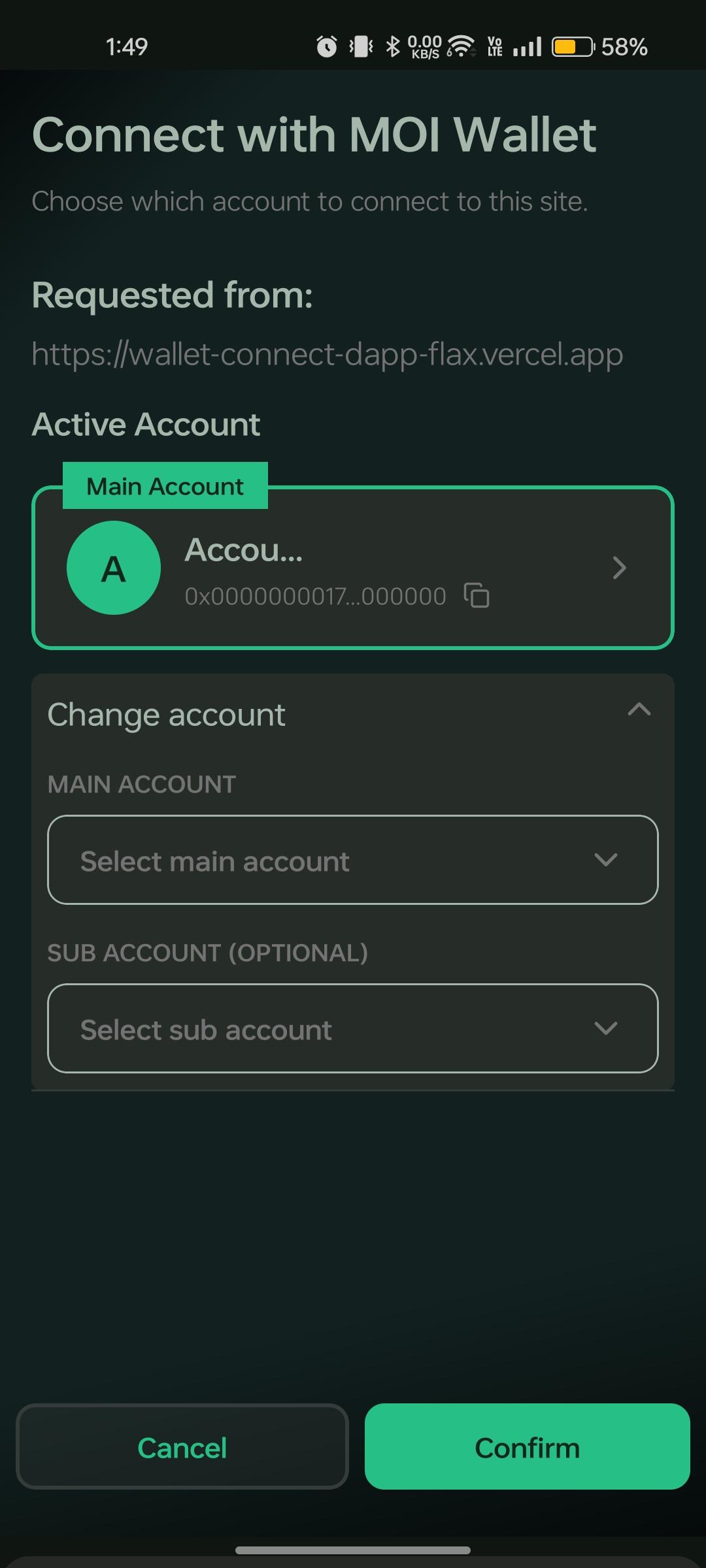
Sign message
When a connected DApp requests a message signature, Moi Wallet displays a sign message approval screen showing the DApp name and the message to be signed.
- The DApp sends a sign-message request over the WalletConnect session
- Moi Wallet opens the approval screen
- Review the message and tap Approve or Reject
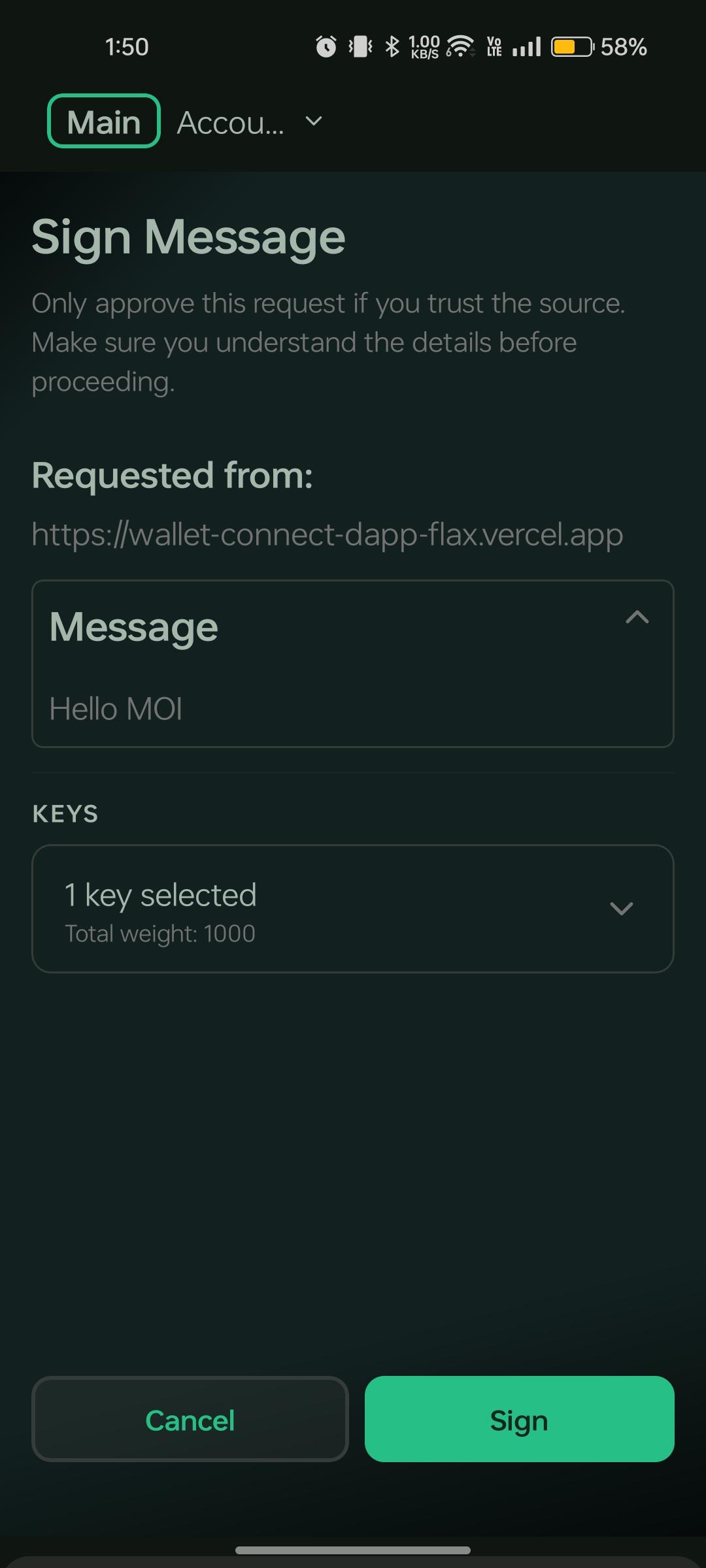
Sign interactions
When a DApp requests an interaction signature, Moi Wallet shows a sign interaction approval screen with the interaction details.
- The DApp sends a
moi.signInteractionrequest over the WalletConnect session - Moi Wallet opens the approval screen with operation details
- Review the interaction and tap Sign or Reject
What happens when you sign an interaction: Moi Wallet uses your private key to produce a cryptographic signature for the interaction. The signed interaction is returned to the DApp over WalletConnect — the wallet does not broadcast it to the network. The DApp is responsible for submitting the signed interaction to the MOI network when ready.
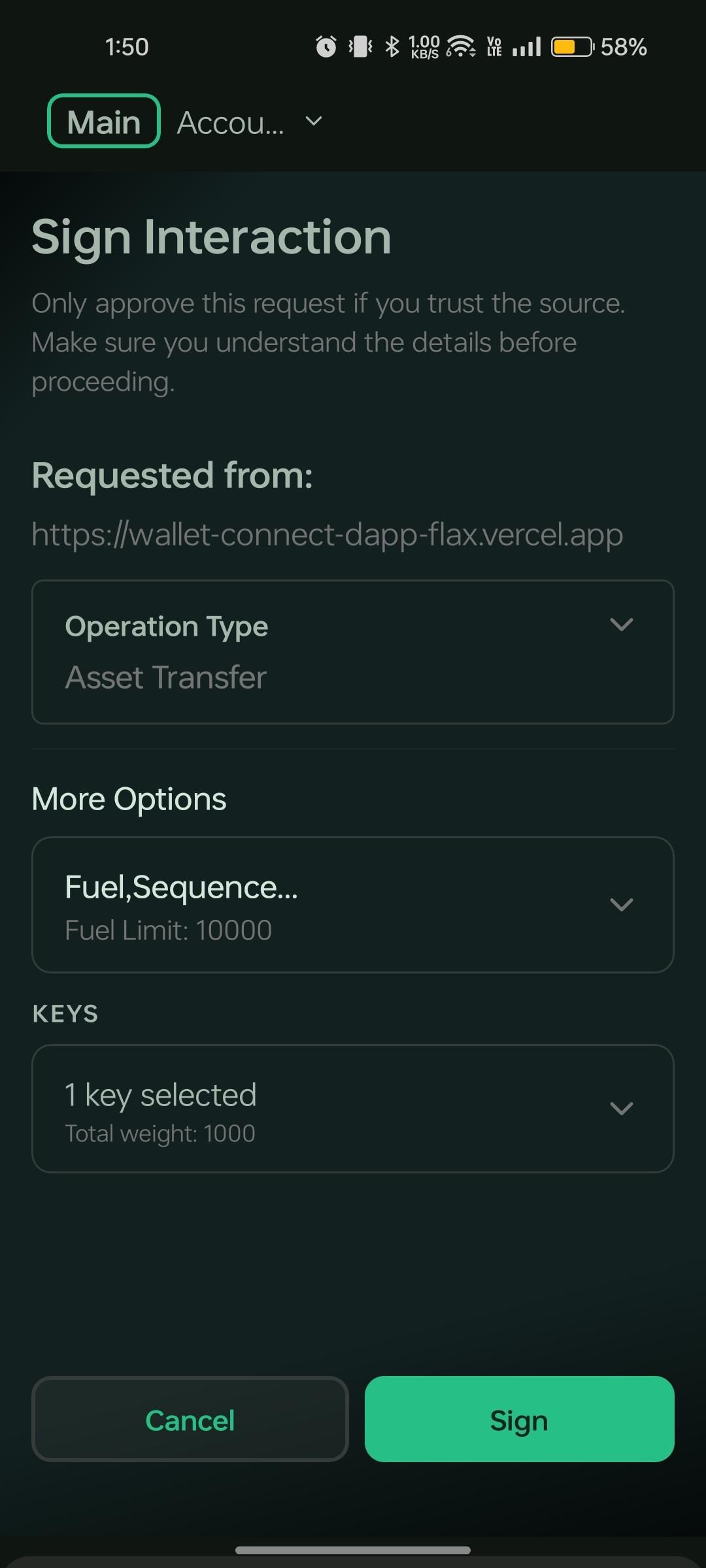
Send interactions
When a DApp requests a send-interaction, Moi Wallet shows a send interaction approval screen. The request arrives as moi.sendInteractions over WalletConnect.
- The DApp sends a send-interaction request over the WalletConnect session
- Moi Wallet opens the approval screen with operation details
- Review the interaction and tap Send or Reject
What happens when you send an interaction: Moi Wallet signs the interaction with your private key and submits it directly to the MOI network on your behalf. The ix_args field holds the encoded interaction object and the signature field holds your signature — together they allow the network to validate and execute the interaction. Once confirmed, the transaction hash is returned to the DApp. In simple terms, send interaction is a way for you to securely transmit and validate interactions on the blockchain in one step.
See also moi.SendInteractions in the MOI JSON-RPC reference.
Session management
WalletConnect sessions persist until you manually disconnect or the DApp disconnects. You can have multiple active DApp sessions at the same time. Sessions are tied to the currently selected network — switch networks if the DApp expects a different environment.
View active sessions
- Open App Drawer → DApp Connections
- View the list of active WalletConnect sessions — each entry shows the connected DApp name and connection status
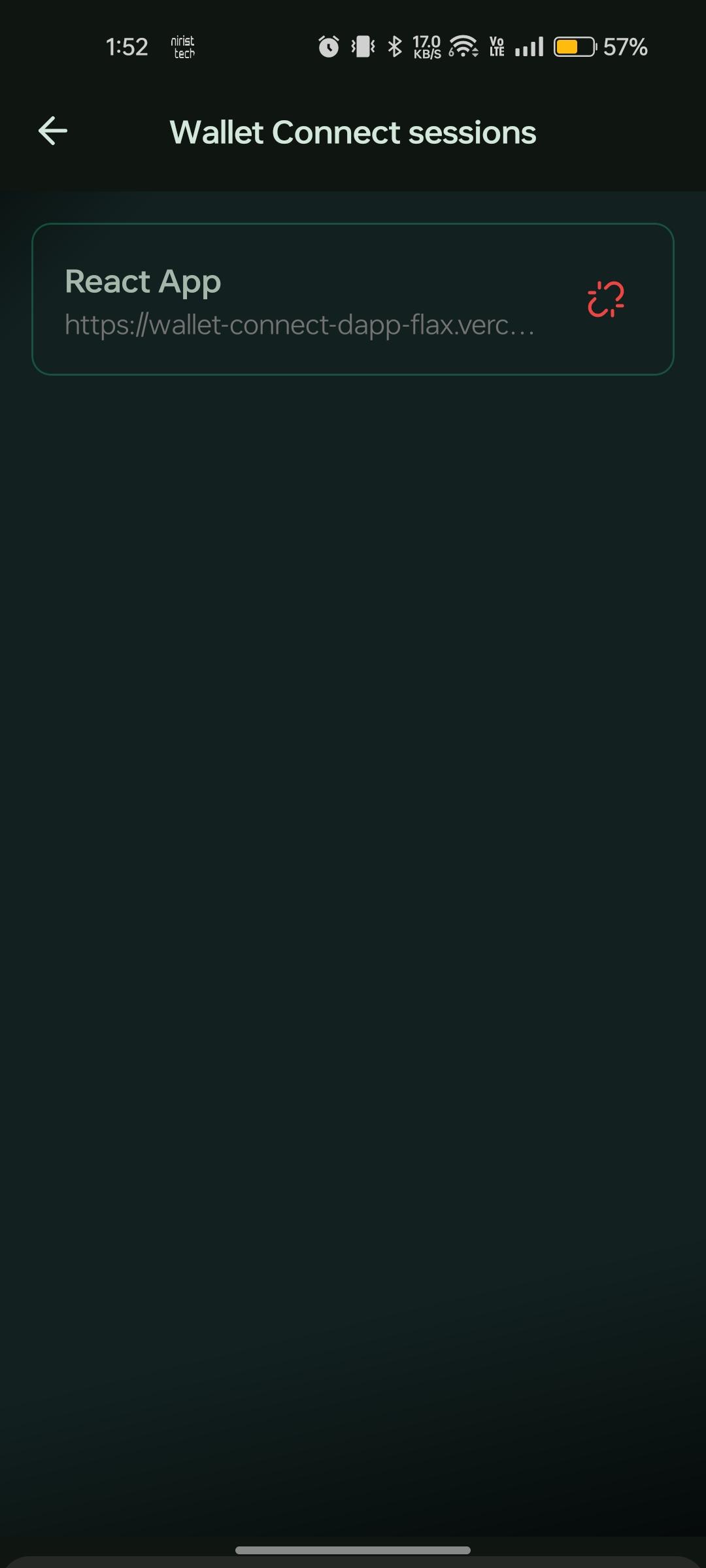
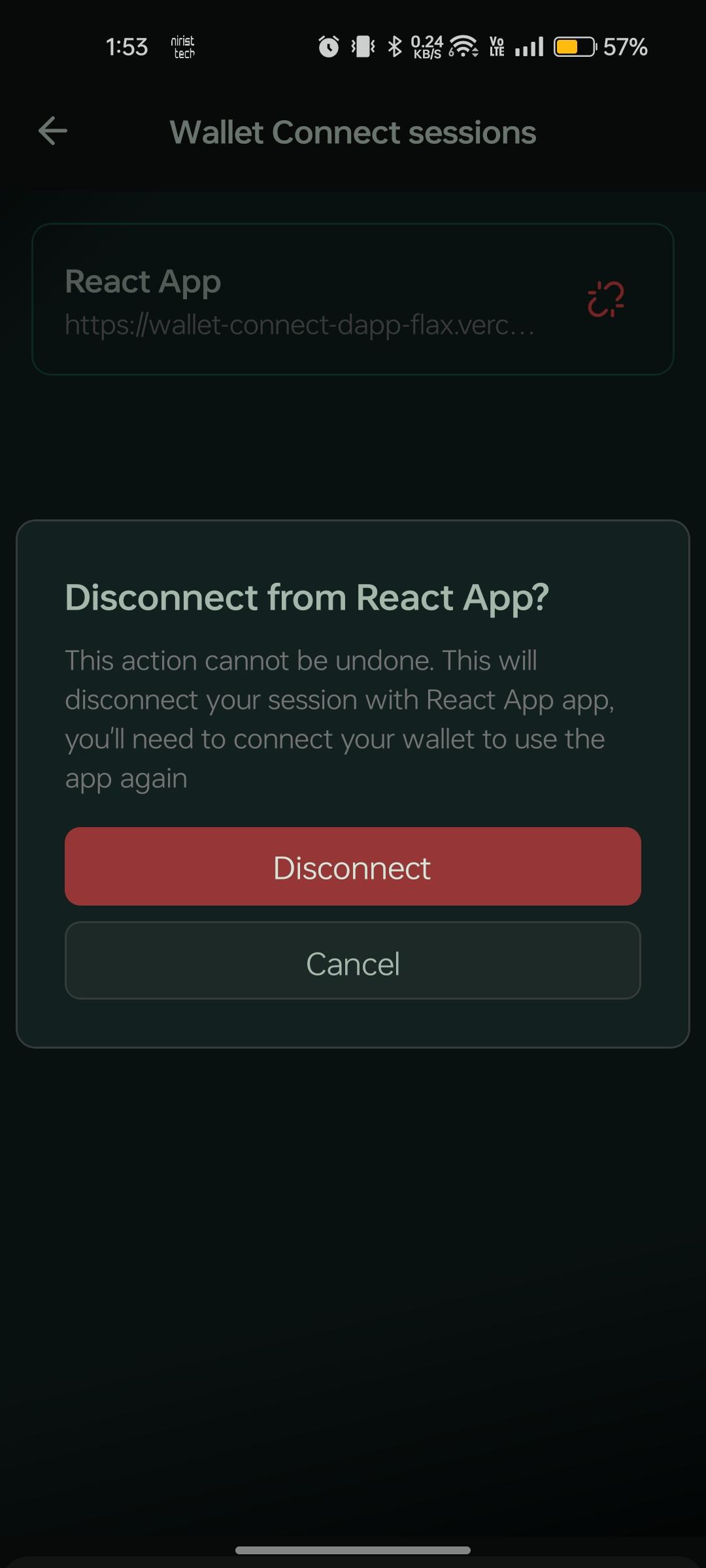
Disconnect a session
- Open App Drawer → DApp Connections
- Select the connection you want to remove
- Tap Disconnect
Window Injection
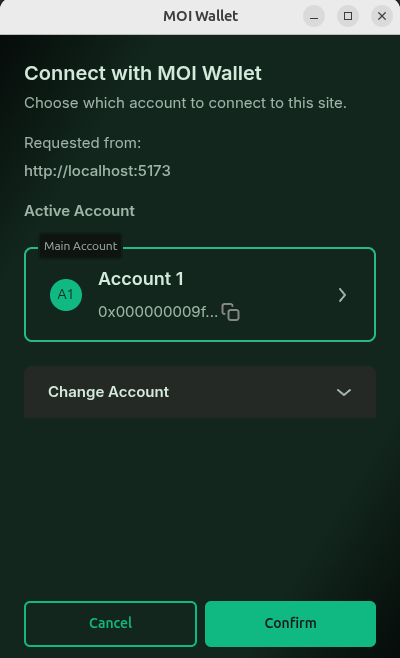
The Chrome extension injects a window.moi provider object into every webpage. This follows the EIP-6963 announceProvider standard, allowing DApps to discover and connect to Moi Wallet automatically.
How it works
- Install the Moi Wallet extension and set up your wallet
- Visit a MOI-compatible DApp in Chrome
- The DApp detects the extension via
window.moior the EIP-6963 provider announcement - Click Connect in the DApp — a popup from the extension appears asking for approval
- Review the DApp's name and requested permissions, then click Approve
- The DApp is connected for the current session and can request transaction signing
Sign message
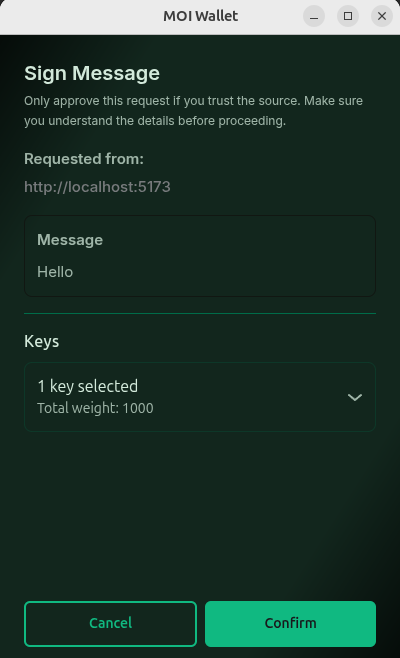
When a connected DApp calls wallet.SignMessage, the extension opens a sign message popup.
- The DApp requests a message signature via
window.moi.request("wallet.SignMessage", [...]) - The extension popup shows the message and requesting site
- Click Approve or Reject
Sign interactions
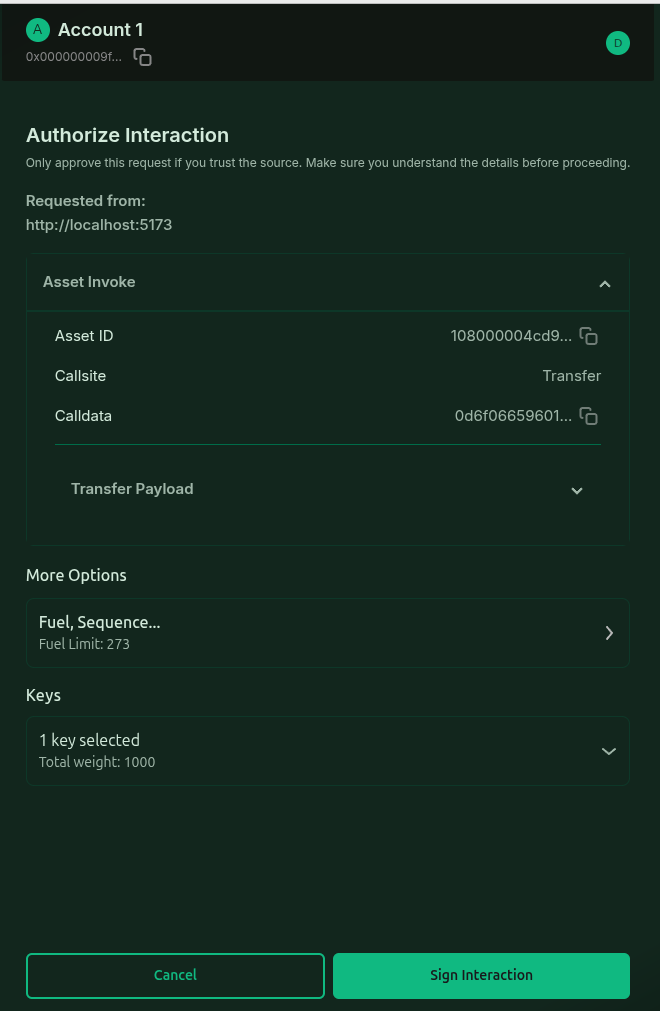
When a DApp requests an interaction signature, the extension opens a sign interaction popup with the full interaction payload.
- The DApp requests signing via
window.moi.request("wallet.SignInteraction", [interaction]) - The extension popup displays the interaction details
- Click Approve or Reject
What happens when you sign an interaction: The extension signs the interaction with your private key and returns the signature to the DApp via JSON-RPC. The interaction is not broadcast to the network — the DApp receives the signed payload and can submit it separately.
Send interactions
When a DApp calls wallet.SendInteraction, the extension opens a send interaction popup. After you approve, the wallet signs and submits the interaction in one flow.
- The DApp requests sending via
window.moi.request("wallet.SendInteraction", [interaction]) - The extension popup displays the interaction details
- Click Approve or Reject
What happens when you send an interaction: Moi Wallet signs the interaction with your private key and broadcasts it to the MOI network through the active RPC host. The ix_args field holds the encoded interaction object and the signature field holds your signature — the network uses both to validate and execute the interaction. The extension returns the transaction hash to the DApp once the interaction is submitted, and logs the activity in your wallet history. In simple terms, send interaction lets you securely transmit and validate interactions on the blockchain without the DApp handling submission separately.
See also moi.SendInteractions in the MOI JSON-RPC reference.
Sign vs send interactions
| Sign interaction | Send interaction | |
|---|---|---|
| Purpose | Produce a signature the DApp can submit later | Sign and submit to the network immediately |
| Network broadcast | No — wallet returns signed data only | Yes — wallet broadcasts on your behalf |
| Mobile method | moi.signInteraction | moi.sendInteractions |
| Extension method | wallet.SignInteraction | wallet.SendInteraction |
| Returned to DApp | Signed interaction payload | Transaction hash |
Security best practices
Before approving any connection request, verify the DApp URL matches the official site. Phishing sites mimic legitimate DApps to trick you into approving malicious transactions.
Read what each DApp is requesting before tapping Approve. A connection request should only ask for permissions relevant to the DApp's function.
DApp connections and transactions are network-specific. Confirm you are on the correct network (mainnet vs testnet) before connecting. See Managing Networks.
Related guides
- Account Management — register accounts before DApp use
- Network Sync — wait for sync before connecting
- Security Settings — lock your wallet when stepping away
- Developer Reference — window.moi — how DApps integrate with the extension