Account Management
Moi Wallet uses a hierarchical deterministic (HD) wallet model. All accounts and keys are derived from your single 12-word seed phrase. This page covers adding accounts, keys, sub-accounts, viewing account details, and viewing private keys.
Account Details
Open the account details screen to view information about the selected account — account name, account ID, public address, keys, and sub-accounts.
Steps
- Click on the account name at the top center of the app/extension to open the account switcher.
- Tap or click Account Details (or select an account and open its detail view).
- Review account metadata, keys, and sub-accounts from this screen.
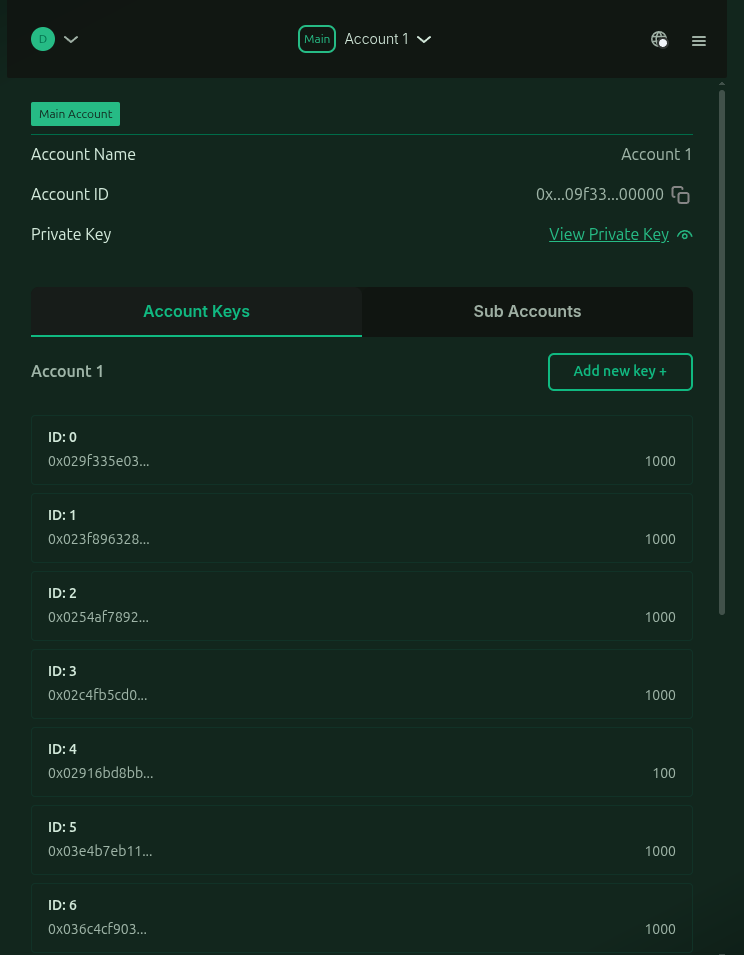
View Private Key
You can reveal the private key for a specific account key after authenticating with your wallet password. Use this only when a protocol, developer tool, or migration workflow explicitly requires the raw private key.
Steps
- Open Account Details for the account.
- Navigate to the Keys section.
- Tap or click View Private Key on the key you need.
- Authenticate with your wallet password.
- The private key is displayed on screen.
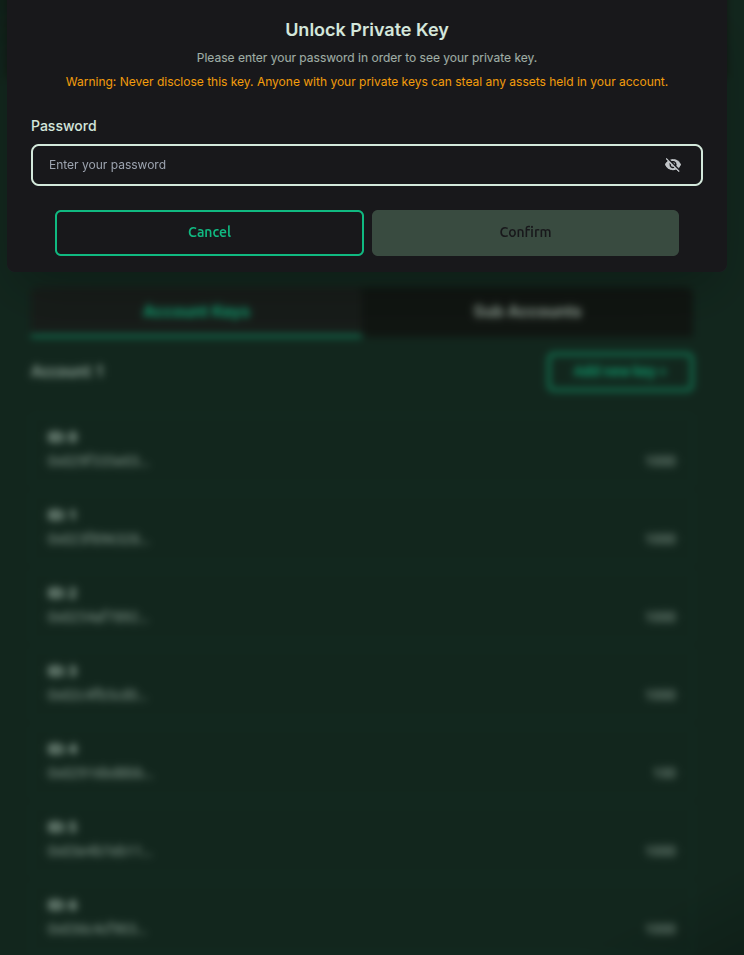
Your private key grants full control over the associated account key. Do not share it, screenshot it, or store it in plain text. Anyone with your private key can sign transactions on your behalf.
Add New Account
Each account in your wallet is derived from the same seed phrase using a new BIP-44 derivation path — an industry standard that generates a unique key pair for each account index without requiring a new seed phrase.
Steps
- Click on Account name at the top center of the app/extension which opens Account switcher.
- Tap or click Add Account
- Enter a name to identify the account (e.g.
Savings,DApp Testing) and fill required details like amount and select keys to sign the interaction. - Confirm — the new account is created and appears in your account list
Important notes
- All accounts share the same seed phrase. Exporting or backing up your seed phrase restores every account derived from it.
Add Keys
MOI accounts can hold multiple key pairs for different signing purposes — for example, separate keys for different roles or application contexts on the MOI protocol.
Steps
- Open the account detail screen for the account you want to add a key to
- Go to Keys
- Tap or click Add Key
- Select the key type appropriate for your use case
- Confirm with your wallet password
Important notes
- Added keys are linked to the account on the MOI network after you complete the Register Account step (or when the account is already registered and the key is submitted on-chain).
- Keep your wallet password secure — it is required to authorise key operations.
Add Sub-Account
Sub-accounts are child accounts linked to a parent account at the MOI protocol level. They are used for application-specific account contexts — for example, isolating activity for a particular DApp or service without creating a separate top-level account.
Steps
- Open the account detail screen for the parent account
- Go to Sub-Accounts
- Tap or click Add Sub-Account
- Enter a sub-account name and other details required for creating a sub-account.
- Confirm
When to use sub-accounts
Sub-accounts are useful when a MOI application or protocol expects activity under a named child context rather than the parent account directly. Consult the DApp or protocol documentation for whether a sub-account is required.
Related guides
- Attach Account — attach your first account after wallet setup
- Register Account — register accounts on the MOI network
- Network Sync — wait for sync after adding accounts
- DApp Connections — connect DApps after accounts are registered
- Security Model — how HD derivation works under the hood